Linux AppImage: The Single-File Desktop App Distribution Method
When you think about installing software on Windows, you usually recall this process:
- Download a
.exeor.msiinstaller file - Click “Next, Next, Finish”
- You often don't know exactly what was installed where (Registry + scattered files)
Linux offers a completely different app distribution method, one rarely seen on Windows. This is AppImage.
Just as you can download and run a single APK file on mobile to get an app working, on Linux, you can run a complete desktop app from a single file. This method requires no installation process, no package manager, just a single "executable file" to manage.
In this article, we'll cover:
- What AppImage is
- Why it's a particularly unfamiliar yet appealing method for Windows users
- And how to best manage AppImages on Linux (especially leveraging
/opt)
—all in one place.
What is AppImage?
In a nutshell:
AppImage = A "single executable file" bundling an application with all its necessary libraries.
In other words, it's a distribution format where everything an app needs to run is packaged as much as possible into one self-contained executable file.
Its usage is also incredibly simple.
# 1. Download the AppImage file
$ ls
MyApp-1.0-x86_64.AppImage

# 2. Grant execution permission
$ chmod +x MyApp-1.0-x86_64.AppImage

# 3. Run
$ ./MyApp-1.0-x86_64.AppImage
That's it. The concept of "installation" barely exists; if you want to uninstall it, you simply delete the file.
It's akin to a portable app on Windows, but AppImage elevates this concept to a standard format for the Linux desktop ecosystem.
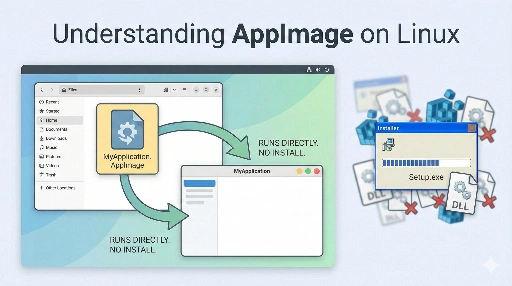
Why is it unfamiliar to Windows users?
The traditional Windows approach involves:
- An installer program that
- copies files to system folders
- adds keys to the Registry
- registers various items like Start Menu entries, services, and drivers.
From a user's perspective, it feels like “I just installed it, but now there's a lot of stuff scattered throughout the OS.”
In contrast, AppImage:
- has no Registry entries
- doesn't touch system directories
- isn't registered with a package manager
It exists as a completely self-contained file. You can place it anywhere, and it will run as long as you have the file.
If Windows is the “OS where I know least about what's installed on my computer,” AppImage is a method that shows you “my app is right here” at the file level.
This aligns well with the philosophy of Linux.
- “Everything is a file”
- “User-understandable structure over automatic magic”
AppImage offers a very simple model: “app = one file.”
Advantages of AppImage: Why is it so convenient?
Here are the key reasons to appreciate AppImage:
1. No installation process
- It's not registered with a package manager
- It doesn't secretly copy anything to places like
/usr/binor/usr/lib - There's no Registry-like system involved
It's simply “one executable file.”
2. Extremely easy to delete/clean up
- Don't like it after trying it? → Just delete the file
- No need to wonder, “What did this app leave behind on my system?”
While configuration files might be created in places like ~/.config, at least the executable binary itself is completely visible and self-contained.
3. Easily avoids Dependency Hell
AppImage typically includes all necessary libraries for execution, which means:
- Differences in glibc versions across distributions
- Mismatched
libXxx.soversions
These issues are often resolved to some extent within the AppImage itself before distribution. From a user's perspective, this reduces concerns about “will it run on this distribution?”
4. No root privileges required
In most cases:
- The user downloads it
- Grants permissions (
chmod +x) - And runs it directly
—and that's it. Since nothing is copied to system directories, it can be used perfectly well without sudo.
Disadvantages: The Trade-off with Package Managers
Of course, AppImage isn't a silver bullet. Key disadvantages include:
- Difficult central management
- You can't see versions or updates at a glance from package managers (apt, pacman, dnf, etc.)
- Inconsistent update methods
- Some AppImages have built-in update features, but many do not.
- Increased disk usage
- Since each AppImage includes its own libraries, there can be increased duplication.
Therefore, rather than suggesting “use AppImage for all apps,” it's more practical to use it selectively for:
- Apps with cumbersome installation processes
- Apps you want to use consistently across multiple distributions
- Less commonly used tools, experimental apps
This selective approach to AppImage usage is more realistic.
Where to put AppImages? Management Strategies
Now, let's move on to a practical question. Where should you store AppImage files, and how should you manage them?
While every Linux user has their own style, there are two main approaches:
1. Keeping them in your home directory (~/Apps, ~/bin, etc.)
When I first started using Linux, this is what I did.
~/apps/MyApp/MyApp.AppImage- Running them directly from
~/Downloads - Creating a new folder for each on the fly
Advantages
- No root privileges required
- If it's a “single-user machine,” this approach is generally fine.
Disadvantages
- Not shareable if you have multiple user accounts
- Confusion later when organizing: “Was this an AppImage? What's this folder for?”
- From a Linux file system perspective, “system-wide applications” get mixed with “personal data.”
While not a bad method for a personal laptop used by a single person, if you want a more "Linux-like approach" to management, the following method is a better fit.
2. Managing them in app-specific directories under /opt
This is also my preferred method.
- Create a separate directory for each app under
/opt - Place the AppImage file in that directory
- Configure permissions and groups properly to share across multiple user accounts
For example, to manage MyApp.AppImage:
# 1. Create an app-specific directory
sudo mkdir -p /opt/myapp

# 2. Move the AppImage
sudo mv ~/Downloads/MyApp-1.0-x86_64.AppImage /opt/myapp/myapp.AppImage

# 3. Grant execution permissions
sudo chmod 755 /opt/myapp/myapp.AppImage
And if you want to run the myapp command from anywhere in the system:
sudo ln -s /opt/myapp/myapp.AppImage /usr/local/bin/myapp
This way:
- Actual executable file location:
/opt/myapp/myapp.AppImage - Command accessible via PATH:
/usr/local/bin/myapp
is how it's organized.
For stricter permission management
For instance, if you want to grant execution permissions only to a specific group:
# Create a group named myapps
sudo groupadd myapps

# Change the group of the directory and file to myapps
sudo chown -R root:myapps /opt/myapp

# Allow only owner/group to execute (block others)
sudo chmod 750 /opt/myapp/myapp.AppImage
sudo chmod 750 /opt/myapp
Now, only users belonging to the myapps group can execute this AppImage.
sudo usermod -aG myapps alice
sudo usermod -aG myapps bob
The advantages of this method are:
- Aligns well with the Linux filesystem's intent
/optis where “unbundled application packages” are placed.- Multiple user accounts can share and use a single app.
- You can leverage permissions/groups to control “who can use which app” at the file system level.
Integrating with the Desktop Environment (.desktop file)
If you want AppImages to appear in your desktop environment's menus (like GNOME/KDE) instead of just being file-based, you can create a .desktop file.
For example:
~/.local/share/applications/myapp.desktop:
[Desktop Entry]
Type=Application
Name=My App
Exec=/opt/myapp/myapp.AppImage
Icon=/opt/myapp/icon.png
Terminal=false
Categories=Utility;
With this setup:
- "My App" will appear in your application menu
- Clicking it will execute
/opt/myapp/myapp.AppImage.
If you want it visible system-wide, place it under /usr/share/applications/.
This is also entirely independent of package managers; it's a simple structure where you just add/delete files, making management very straightforward.
Summary: The Linux Philosophy in a "Single File"
AppImage itself is a distribution method that clearly embodies the Linux philosophy.
- Transparency
- You can see exactly where the app is and what's being executed, at the file level.
- User Control
- Instead of an installer program making arbitrary changes to your system, the user directly decides where to place files.
- Simplicity
- Installation/uninstallation is not a complex wizardry, but rather reduced to “file copy/delete.”
This model is rarely seen on Windows. For those tired of the feeling that “installing something just adds clutter somewhere in the OS,” AppImage can feel quite refreshing.
If you start using AppImage:
- Initially, it's fine to just keep them in your home directory.
- As you get more comfortable, organize them under
/opt/appname. - I recommend exploring group permissions, symbolic links, and even integrating
.desktopfiles.
Even with just this much, you'll be able to:
- Understand how apps are distributed on your system
- Control who can access which apps
—with great clarity and control. Personally, I believe this is one of the reasons to use Linux.
Related Articles



There are no comments.