Key Takeaways
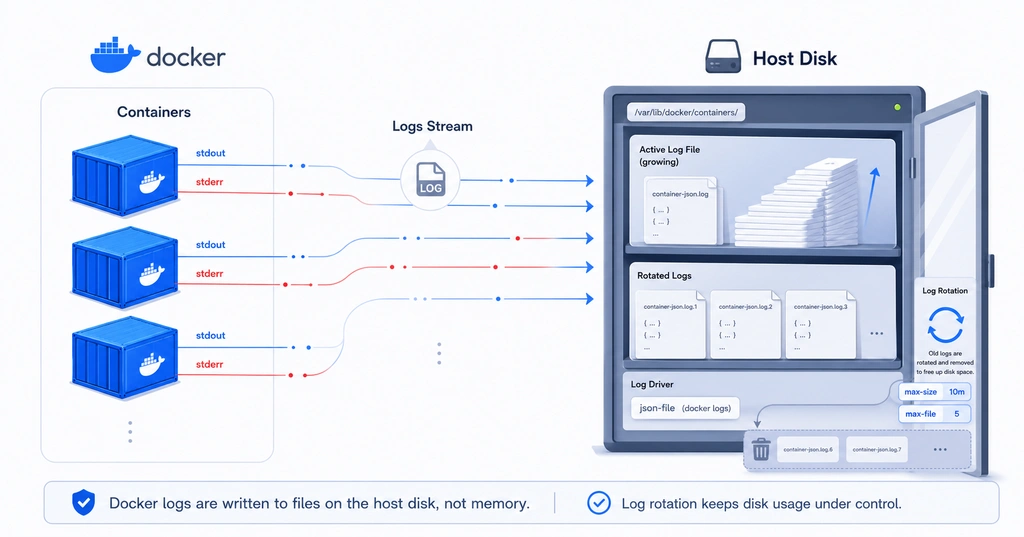
- Docker container console logs are stored as files on the host's disk, not in system memory.
- The
docker logscommand reads and displays these stored files.- To prevent log files from growing indefinitely, it's crucial to configure log rotation options (
max-size,max-file).
1. Where and How Are Logs Stored?
Dockercaptures both standard output (stdout) and standard error (stderr) streams from containers and processes them via a Logging Driver. If no specific configuration is made, Docker defaults to using the json-file logging driver.
- Storage Location: Container logs are stored as JSON-formatted files in a specific path on the host system. The typical path is:
/var/lib/docker/containers/[컨테이너_ID]/[컨테이너_ID]-json.log
docker logsCommand: This command doesn't display content from memory; rather, it reads the aforementioned JSON log files and presents them in the terminal.
2. What if Logs Keep Accumulating and Cause Disk Space Issues?
Yes, that's correct. If no action is taken, log files can grow indefinitely and consume all of the host's disk space. To prevent this, Docker provides Log Rotation options to limit the size and number of log files.
For example, you can add the following options when running a docker run command:
docker run -d \
  --log-driver json-file \
  --log-opt max-size=10m \
  --log-opt max-file=3 \
  nginx
--log-opt max-size=10m: Limits the maximum size of a single log file to 10MB.--log-opt max-file=3: Limits the maximum number of log files to 3. If the number exceeds 3, the oldest file is deleted.
With this setting, the logs for that container will use a maximum of 30MB (10MB * 3 files) of disk space.
3. Configuring in docker-compose.yml
With Docker Compose, you can easily configure logging options for each service directly within the docker-compose.yml file.
Think of it as the --log-opt flags from the docker run command, but in YAML format.
Here's an example of applying log rotation to a service named my-app:
services:
  my-app:
    image: your-app-image
    # ... other configurations ...
    deploy:
      resources:
        limits:
          memory: 512M

    # 👇 This section configures logging.
    logging:
      driver: "json-file"  # The logging driver to use (can be omitted as it's the default)
      options:
        max-size: "10m"    # Maximum size per file: 10MB
        max-file: "3"      # Maximum number of files: 3
logging: This key initiates the logging configuration for the service.driver: Specifies the logging driver to use.json-fileis the default.options: Configures options to be passed to the driver.max-size: Identical todocker run's--log-opt max-size.max-file: Identical todocker run's--log-opt max-file.
Now, when you start this service with docker-compose up, the my-app container's logs will automatically rotate, using a maximum of 30MB (10MB * 3 files) of disk space.
4. Setting Defaults for All Containers
If you find it cumbersome to apply options to each container individually and wish to enforce a default policy across the entire system, modifying the Docker Daemon configuration file is the best approach.
- Open or create the
/etc/docker/daemon.jsonfile. (If the file doesn't exist, create a new one.) - Add the following content:
{
    "log-driver": "json-file",
    "log-opts": {
        "max-size": "10m",
        "max-file": "3"
    }
}
- Restart the Docker daemon.
sudo systemctl restart docker
With this configuration, all containers created in the future will automatically adhere to this policy unless specific logging settings are overridden. Of course, if you specify different logging options for a particular container in a docker-compose.yml file or via the docker run command, individual settings will take precedence over the daemon's default configuration.
- Per-service Configuration: Setting logging options within the
loggingsection of adocker-compose.ymlfile is generally the most common and convenient method. - Global Default Configuration: To apply a uniform policy to all containers on the server, modify the
/etc/docker/daemon.jsonfile.


There are no comments.