[Tool Summary] img2pdf: Lossless Image-to-PDF Conversion Utility
img2pdfis one of the fastest and most efficient tools for converting images to PDF in a Linux environment. It's optimized for merging multiple images into a single PDF document or converting a single image, and it's Python-based.
In this post, I'd like to introduce a tool I occasionally use and consistently find myself thinking, "This is truly excellent." Its overwhelming speed, Linux-native lightness, and seamless integration with pipes make it a favorite.
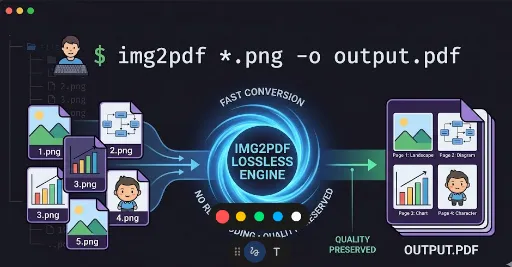
1. Working Principle

Its most significant feature is 'No Re-encoding' during the merge process. * Traditional Methods (e.g., ImageMagick): These methods read image files, analyze pixel data, and then recompress them (lossily) to fit the PDF format. This process can be CPU-intensive and may lead to a reduction in image quality. * img2pdf Method: It directly embeds the binary data of the image files as-is (Lossless) into the PDF container. * Advantages: Offers overwhelmingly fast conversion speeds, preserves 100% of the original image quality, and results in efficient file sizes.
2. Installation & Removal
Installation (Ubuntu/Debian based)
sudo apt update
sudo apt install img2pdf
Removal
# Remove only the program
sudo apt remove img2pdf

# Remove configuration files and dependencies cleanly
sudo apt purge img2pdf
sudo apt autoremove
3. Usage Guide
Basic Merging
Use this to combine all PNG files in the current directory into a single PDF.
img2pdf *.png -o output.pdf
Merging in a Specific Order
You can specify the order by listing filenames directly.
img2pdf image1.png image2.png image3.png -o output.pdf
Setting Page Size and Margins (Advanced)
This is useful when you want to fit images to a specific standard (e.g., A4) or add margins.
# Fit image size to A4 and add 2cm border
img2pdf --pagesize A4 --border 2cm *.png -o output.pdf
Specifying a Custom Resolution (DPI)
Use this when you want to force a specific output resolution for your images.
img2pdf --dpi 300 *.png -o output.pdf
4. Developer's Note
- Sorting Issue: The wildcard (
*) in the Linux terminal recognizes numbers as strings.- Example: Files might be merged in the order of
1.png,10.png,2.png. - Solution: The safest approach is to save filenames with consistent padding, such as
01.png,02.png...10.png.
- Example: Files might be merged in the order of
- Leveraging Pipes: It goes without saying that pipe utilization is one of Linux's most convenient features. You can take the output of other commands and instantly create a PDF.
find . -name "*.png" | sort | xargs img2pdf -o output.pdf
One-line Summary: "The best tool for creating PDFs without quality loss, at maximum speed, in a truly Linux-native way."

There are no comments.