The True Identity of the /usr Directory in Linux Filesystems
usr is not a user
If you’ve ever used Linux, you’ve inevitably encountered the /usr directory.
When I first started using Linux, I thought:
“Ah,
/usrmust be for users. It probably contains stuff related to user accounts.”
Many beginners probably had a similar misunderstanding at least once. But let’s get straight to the point:
/usris not a directory for individual “user” data. The home directories are handled by/home, while/usrserves a completely different purpose.
In this article, we’ll clarify the real identity and role of /usr, and explain how it differs from other directories such as /home, /opt, and /var.
1. Bottom line: /usr is not a “user data” directory

In modern Linux, the role of /usr can be summed up in one sentence:
/usr= the area where the system stores “shared, (generally) read‑only) programs, libraries, and data.”
In plain terms, it contains:
- Executable binaries for the OS and applications
- Libraries used by those executables
- Shared resources such as manuals, icons, and data files
Conversely, the files you typically think of as “user‑specific documents, settings, downloads” live under:
/home/<username>
They serve a completely different purpose. So thinking of /usr as a “user directory” is simply wrong.
2. What does usr stand for?
There’s a bit of history and debate here.
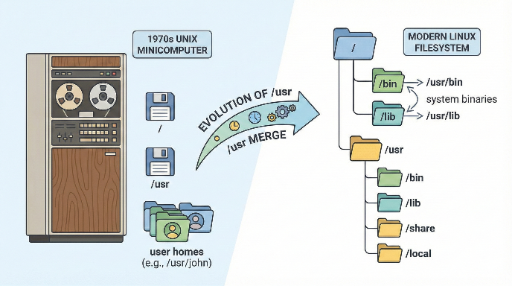
- In early Unix,
/usractually contained user home directories. - Hence the traditional view that
usris a contraction of “user.” - Later, it was reinterpreted as “Unix System Resources” or similar.
But for modern Linux users, the historical spelling is less important than the current role.
The Filesystem Hierarchy Standard (FHS) defines /usr as:
- A place for data that can be shared system‑wide (read‑only, if possible)
- Programs, libraries, manuals, and shared data
So, whether usr stands for “user” or not is largely irrelevant. The key takeaway is:
It’s a shared resource area for the system and applications.
3. What lives under /usr?
If you run ls /usr on a server or desktop, you’ll usually see directories like:
$ ls /usr
bin  lib  lib64  local  sbin  share  include  ...
Each directory roughly means:
/usr/bin– Binaries for regular users (e.g.,/usr/bin/python,/usr/bin/grep,/usr/bin/curl)./usr/sbin– System‑administration binaries, typically used by root (e.g.,/usr/sbin/sshd,/usr/sbin/apachectl)./usr/lib,/usr/lib64– Shared libraries used by programs (e.g.,.sofiles)./usr/share– Architecture‑independent shared data (man pages, icons, locale data)./usr/include– C/C++ header files used by development toolchains./usr/local– Space for programs installed locally, not via the system package manager.
In short:
/usris a big warehouse of system‑wide programs and related resources—executables, libraries, and shared data.
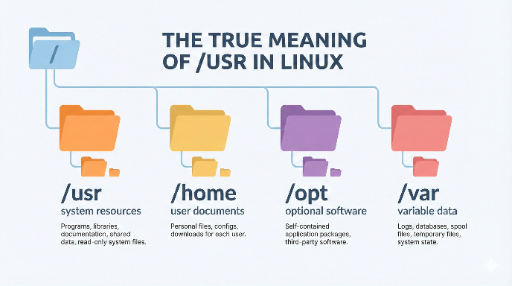
4. /usr vs /home vs /opt vs /var — what’s the difference?
Linux filesystem structure can be confusing at first, especially when comparing /usr, /home, /opt, and /var. Here’s a quick comparison:
4.1 /home — the real “user” house
- Example paths:
/home/alice,/home/bob - Per‑user data: documents, photos, downloads, project folders
- User‑specific settings:
~/.config,~/.ssh, etc. - Even after reinstalling the OS,
/homeis often preserved.
Personal data and settings = almost all in
/home.
4.2 /usr — shared resources for the system and apps
- Binaries:
/usr/bin,/usr/sbin - Libraries:
/usr/lib* - Shared data:
/usr/share
“Everything the whole system shares” =
/usr.
No individual user files belong here.
4.3 /opt — a place for a single app bundle
- Non‑distribution‑packaged commercial or third‑party apps often live here.
- Example:
/opt/google/chrome,/opt/mycompany/app - The pattern is usually one directory per application.
“This app lives entirely here” – an application‑level management space.
4.4 /var — data that changes (Variable)
- Logs:
/var/log - Cache:
/var/cache - Queues, spools:
/var/spool - Databases, state files, and other frequently changing data
“Run‑time data” =
/var.
5. Why is it /usr/bin instead of /bin? (And it’s even more confusing today)
Older documentation explains why /bin and /usr/bin were separated. Modern distributions simplify this by making:
/bin→ symlink to/usr/bin/sbin→ symlink to/usr/sbin
So on current systems:
- Most executables live under
/usr/binand/usr/sbin /binand/sbinare essentially legacy placeholders for backward compatibility.
For newcomers, this can be confusing, but the core idea is:
“Where are the actual programs?” → Mostly in
/usr/binand/usr/sbin.
6. How to avoid confusion as a beginner
The typical confusion when first using Linux looks like this:
- “
/usris for users, right?” - “Should I install my program in
/usr?” - “What’s the difference between
/homeand/usr?”
Remembering a few simple rules usually clears up most confusion.
6.1 Where to put personal scripts/tools?
- Personal scripts or tools: usually
~/binor~/scripts - Add to
PATHif needed:
mkdir -p ~/bin
echo 'export PATH="$HOME/bin:$PATH"' >> ~/.bashrc
This is a personal space, distinct from /usr.
6.2 Where to put system‑wide custom apps?
- Compile from source or install third‑party apps (AppImage, tar.gz)
- Common pattern:
- Main executable: under
/opt/<appname> - Launchers: symlink to
/usr/local/bin
This keeps the system tidy.
Thus, /usr/local is conventionally:
“Space for programs not installed via the distribution’s package manager, managed locally.”
It’s more natural to think of /usr/local as a dedicated area for administrators to use at will rather than a sub‑area of /usr.
7. Summary: /usr is a “system warehouse,” not a “user’s house”
Let’s recap:
/usris not a user data directory.- In modern Linux,
/usrcontains: - Shared executables
- Libraries
- Shared manuals, icons, data
- A large, read‑only warehouse for the system and applications.
- Personal data lives under
/home/<username>. - Custom-installed apps usually go to
/optor/usr/local.
Once you grasp the filesystem structure, you’ll naturally answer questions like:
- “Where should I place this file?”
- “Is this app for the whole system or just me?”
- “What should I preserve when reinstalling the OS?”
Understanding /usr correctly is a solid starting point.

There are no comments.