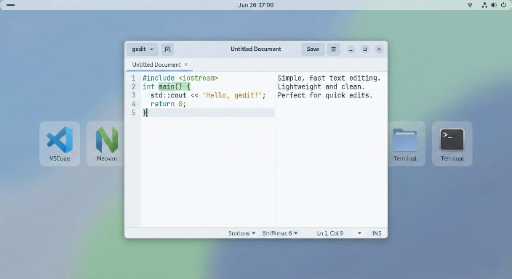
When you think of text‑handling tools on Linux, big names like VSCode, Neovim, or Obsidian usually come to mind. But there are countless moments when you just need something lightweight and you think, “I don’t need all that.” That’s where gedit shines.
This post is a personal account of why you should give gedit a try on Linux, and how it can become a browser‑level staple in your daily workflow. I’ll also throw in a quick comparison with Windows’ Notepad.
Why gedit, Really?

1. It Starts Fast = Your Thoughts Don’t Disappear
VSCode and Obsidian are great, but by the time they launch, the idea you had in mind may have already faded. gedit, on the other hand:
- Launches almost instantly from the terminal with
gedit &or from a launcher. - Opens a new document with virtually no delay.
- Lets you write in the flow of your thoughts.
- Is easier to use than
nanoand far more readable.
It’s the tool that cuts down on the “I was going to jot this down but I didn’t” moments.
2. Intuitive UI – No Manual Needed
gedit is remarkably straightforward. The hamburger menu contains only the essentials:
- Open, Save, and Close.
Just looking at that layout, you’ll think, “I can use this right away.” No Vim‑style modes to learn, no VSCode‑style configuration maze.
3. Sticks to the “Text Editor” Role
gedit’s philosophy is simple:
- Open, write, and save documents.
- No obsession with rich‑text formats, complex project management, or build systems.
- Instead, it offers:
- Automatic line wrapping.
- Indentation and tab/space settings.
- Line numbers.
- Basic search/replace.
These essential features make it a breeze for notes, blog drafts, server config edits, or quick scripts.
Typical Use Cases for gedit
1. Daily To‑Do and Idea Sketches
- Open a file like
todo-2025-12-04.txtand jot down tasks as they come. - Capture inspiration and debugging points with keyword‑heavy quick notes.
Point: It’s perfect for the “capture the thought” stage, not for polished documents.
2. Simple Code / Snippet Writing
Suppose you want to write a tiny Bash script:
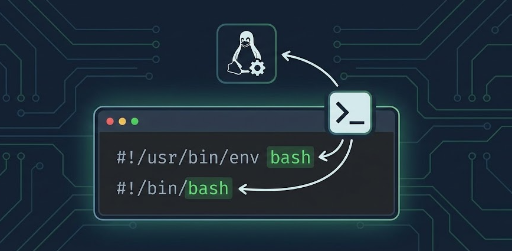
#!/usr/bin/env bash
DATE=$(date +"%Y-%m-%d %H:%M:%S")
echo "Backup started at $DATE"

# do something...
For this, you don’t need a full VSCode project or a Neovim session. Just run:
gedit backup.sh
- Syntax highlighting improves readability.
- After saving,
chmod +x backup.shgives it execute permission.
It’s ideal for quickly testing code and validating ideas.
3. Editing Config Files Quickly
/etc/hostsnginx.conf.bashrc,.zshrc
Running:
sudo gedit /etc/hosts
lets you edit with root privileges in a GUI, with line numbers and auto‑wrap making structure easier to see. If you’re comfortable with CLI editors, vi or nvim work too, but when you want a visual overview, gedit is handy.
Features & Settings That Make gedit Truly Comfortable
1. Essential Default Options
In the Edit → Preferences menu, enable:
View Tab
- ☑ Show line numbers
- ☑ Highlight current line
- ☑ Show whitespace characters (if needed)
Editor Tab
- ☑ Enable automatic indentation
- Set tab width to 2 or 4, depending on preference
- ☑ Insert spaces instead of tabs (recommended)
With these tweaks, gedit moves from a simple notepad to a lightweight code editor.
2. Extending with Plugins
gedit offers a handful of useful plugins. In Preferences → Plugins, consider enabling:
- Bracket Completion – auto‑complete parentheses, brackets, etc.
- Draw Spaces – visualise tabs/spaces, great for YAML or Makefiles.
- External Tools – run shell scripts or tools like
shellcheckfrom within gedit. - Snippets – store frequently used code snippets.
Activating these makes gedit a smart yet lightweight editor.
(Advanced) Building Your Own Python Plugin
This is gedit’s hidden gem. It’s a C++ program, but you can control almost every feature via Python bindings.
Below is a quick example of a plugin that inserts the current time in your blog’s format.
Step 1: Prepare the Plugin Folder
mkdir -p ~/.local/share/gedit/plugins
Step 2: Create the .plugin Descriptor
Create ~/.local/share/gedit/plugins/my_stamper.plugin with:
[Plugin]
Loader=python3
Module=my_stamper
IAge=3
Name=My Blog Stamper
Description=Inserts a custom datetime format for my blog
Authors=Your Name <email@example.com>
Copyright=Copyright © 2025 Your Name
Website=http://www.example.com
Step 3: Write the Python Logic
Create ~/.local/share/gedit/plugins/my_stamper.py:
import gi
from datetime import datetime
gi.require_version('Gedit', '3.0')
from gi.repository import GObject, Gedit

class MyStamperPlugin(GObject.Object, Gedit.WindowActivatable):
    __gtype_name__ = "MyStamperPlugin"
    window = GObject.property(type=Gedit.Window)

    def do_activate(self):
        self._insert_timestamp()

    def do_deactivate(self):
        pass

    def do_update_state(self):
        pass

    def _insert_timestamp(self):
        doc = self.window.get_active_document()
        if not doc:
            return
        now_str = datetime.now().strftime("%Y-%m-%d [%a] %H:%M\n")
        doc.insert_at_cursor(now_str)
(This is a simplified example; a full plugin would register a menu item and connect signals.)
Step 4: Reload and Test
- Restart gedit.
- In Preferences → Plugins, you’ll see My Blog Stamper.
- Checking it runs the Python code and adds the timestamp.
Because you can use any Python library, you can fetch API data, format JSON, or perform regex replacements directly inside the editor.
How gedit Fits with VSCode, Neovim, and Obsidian
gedit doesn’t replace those tools; it serves a different purpose.
- VSCode – full project development, debugging, Git, LSP.
- Neovim – keyboard‑centric, low‑resource, terminal‑friendly.
- Obsidian – knowledge management, linking, graph view.
- gedit – fast launch, lightweight, GUI‑friendly for quick notes and simple code.
Think of gedit as the first gate that captures your thoughts before you dive into a larger workspace.
Suggested Routine for Linux Users
- Quick Launch – pin a launcher shortcut or use
Super + T→gedit &. - Daily Note File – keep a file like
~/notes/2025-12-04-daily.txtopen all day. - Start Simple – write quick code or config edits in gedit; move to VSCode or nvim if it grows.
- Keep 3–4 Plugins – Bracket Completion, Snippets, Draw Spaces, External Tools.
- Create a Custom Plugin – e.g., a shortcut to insert a timestamp.
With these habits, gedit becomes a quiet, reliable companion in your Linux workflow.
gedit may not be flashy, but it’s a quiet worker that reveals its worth the more you use it. Just as VSCode, Neovim, and Obsidian each have their niche, gedit can be your gateway to thoughts and text on Linux.
There are no comments.