If you're managing your Python development environment with conda, I recommend reading the article below.
- Prereading:
Introduction to Conda, Anaconda, and Miniconda
This article serves as a brief recap and focuses mainly on how to create, delete, clone, and migrate conda environments in practice.
1. Anaconda vs Miniconda in a Nutshell

In summary, you can view them like this:
-
Anaconda:
→ A full package distribution that installs commonly used packages for data science/machine learning in one go. -
Miniconda:
→ Provides only the conda environment/package management functionality,
with a minimal distribution where the developer selects and installs the required packages.
I personally prefer to “start light and only add packages when necessary,” so I generally recommend installing Miniconda and building environments on top of it.
-
Uses less disk space
-
Less hassle with updates
-
Installs only what's necessary for each project, so the environment stays cleaner.
2. Quick Overview of the Concept of conda Environments
A conda “environment” can be thought of as a set of Python/packages separated by project.
-
env A: Python 3.10 + Django 4 + specific library versions -
env B: Python 3.11 + FastAPI + completely different library set
The key is to isolate different versions so they don’t interfere with each other.
Commonly used basic commands related to environments are as follows:
# View the list of currently installed conda environments
conda env list

# Or
conda info --envs
3. Creating a conda Environment
3.1 Creating the Most Basic Environment
conda create -n myenv python=3.12
-
-n myenv: Sets the environment name tomyenv -
python=3.12: Specifies the use of Python 3.12
After the environment is created:
conda activate myenv   # Activate the environment
conda deactivate       # Deactivate the environment
3.2 Installing Often-used Packages While Creating
conda create -n myenv python=3.12 numpy pandas matplotlib
A new environment will be created with these packages installed from the default channel of the already installed Miniconda.
Afterward:
conda activate myenv
conda install scikit-learn
# Or
pip install requests
You can add packages as needed.
4. Deleting a conda Environment
It’s best to delete environments that are no longer in use.
(conda environments can take up quite a bit of disk space.)
# Delete the myenv environment
conda env remove -n myenv
To confirm deletion:
conda env list
If myenv has disappeared from the list, everything is normal.
5. Cloning a conda Environment
When you want to create “a similar configuration but with a different name” from an experimental environment where you tried different setups, this is useful.
# Create a cloned environment named new-env based on existing-env
conda create -n new-env --clone existing-env
-
Since it brings over the package versions too,
-
this pattern is often used when you want to “keep the existing environment intact and experiment with a new one.”
After cloning:
conda activate new-env
You can check if it works correctly.
6. Migrating a conda Environment (export/import)
If you want to move an environment to another PC or server,
the most common method is to export the environment as a file and create a new environment based on that file.
6.1 Exporting the Environment (export) – Creating a YAML File
# Export the myenv environment to env.yml file
conda env export -n myenv > env.yml
This env.yml file contains:
-
The environment name
-
Information about the channels in use
-
The installed packages and versions
All of these are recorded.
If You Only Want to Export a Minimal List Based on History
If you want to record only “the packages I installed manually” instead of the full list including dependencies:
conda env export -n myenv --from-history > env-min.yml
By doing so, when you use create in another environment,
the required dependencies will be resolved by conda automatically.
6.2 Creating an Environment in Another Location (or the Same Machine)
To create an environment on another PC, server, or a new location on the same machine:
conda env create -f env.yml
This will create an environment with the name and package versions defined in env.yml.
-
If
env.ymlcontainsname: myenv, it will be created with that name. -
If you want to change the name, modify the
name:part of theenv.ymlfile before executing it.
For example, after changing name: myenv in env.yml to name: myenv-dev, you can run:
conda env create -f env.yml
conda activate myenv-dev
This way, you can get the same configuration but with a different name.
7. Commonly Used conda Patterns
When building environments based on Miniconda, let’s summarize some useful patterns that are often used.
-
One Environment per Project
-
Name environments based on project names like
proj-a-env,proj-b-env. -
It simplifies version management without conflicts.
-
-
Minimize Initial Installations and Expand Only When Necessary
-
Initially, install only
pythonand a few basic packages. -
Expand as needed while developing using
conda installorpip install.
→ This aligns well with Miniconda's minimal philosophy.
-
-
Regularly Export Critical Environments
-
At release points and before deployment:
bash conda env export -n proj-a-env --from-history > proj-a-env.yml -
If this file is committed to the repository,
your team members can easily reproduce the same environment.
-
-
Backup with Clone Before Major Changes
-
Before large package upgrades or Python version changes:
bash conda create -n proj-a-backup --clone proj-a-env -
If issues arise, you can quickly revert to the backup environment.
-
Conclusion: Start Light and Expand When Necessary
In summary, the choices are simple.
-
Anaconda is a way to start with “all the possibly needed packages” installed at once.
-
Miniconda allows for a lightweight approach where you install only what’s truly needed as you go.
In situations where different projects require various Python versions and package combinations,
the combination of Miniconda + well-managed conda environments is much more flexible.
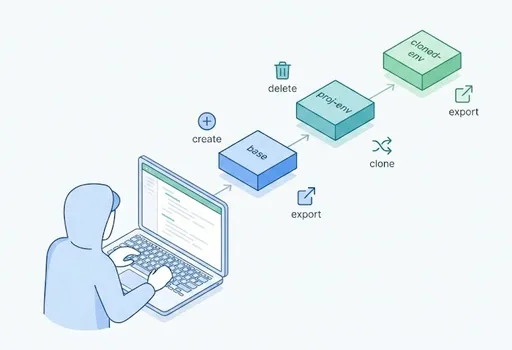
To manage environments:
-
Create them (
conda create) -
Activate them (
conda activate) -
Delete them (
conda env remove) -
Clone them (
conda create --clone) -
Move them to another place (
conda env export/conda env create)
By familiarizing yourself with just these, you’ll be quite free from the concerns of “What should I delete and what should I reinstall this time?” whenever starting a new project.
When starting a new project in the future:
-
Create a new environment based on Miniconda.
-
Install only the truly necessary packages within it.
-
If you’re happy with the environment configuration, export it to
env.ymland reuse it by slightly modifying it for the next project.
Once you get used to this pattern, managing conda environments will no longer be a hassle but rather a “robust habit that keeps your projects clean.”


![thumbnail of [Python Standard Library - 5] Working with Numbers: Using math and statistics](/media/editor_temp/6/b61bc8e3-5ac9-46fd-b6e2-129e91d7931b.png)

There are no comments.