Using Your Galaxy Tab S8+ as a Portable Extended Monitor with Linux (GNOME, Wayland)
Samsung Galaxy Tab S series devices can easily be used as extended monitors for Windows PCs with just a touch of a button. However, as a Linux user, I always found this limitation frustrating.
After some thought, I discovered a remarkably simple and effective method, which I'm now sharing.
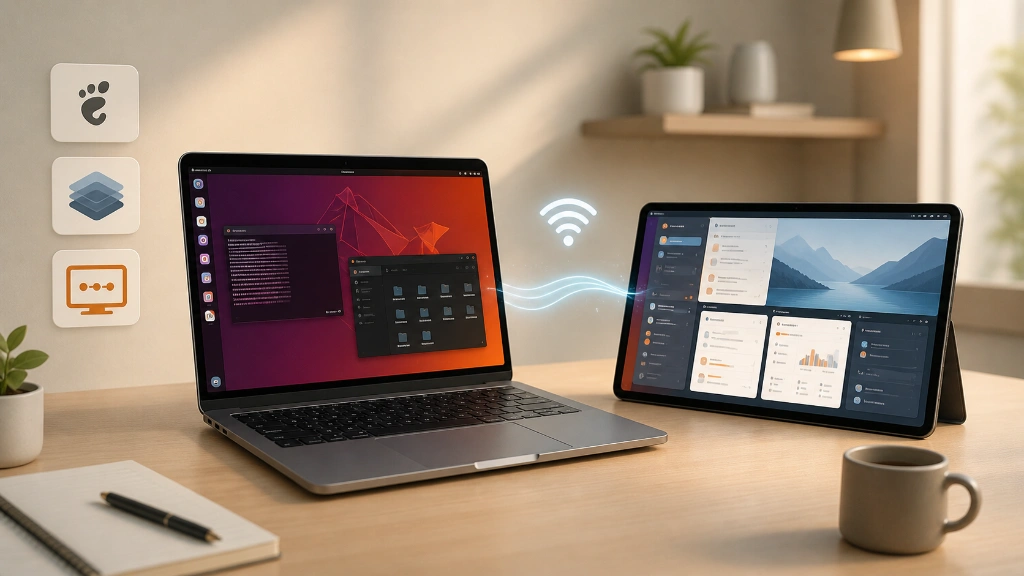
Here's how to create a wireless extended monitor using an Ubuntu laptop and a Galaxy Tab S8+. The key lies in Wayland + GNOME Remote Desktop + RDP extend mode.
1. Environment Setup
- A Linux distribution using GNOME (I'm using Ubuntu)
- Logged in with a Wayland session (you can choose between X11 or Wayland during login)
- An Android tablet (in my case, a Galaxy Tab S8+)
- The same Wi-Fi network
- The Windows App installed on your Galaxy Tab (I believe it was formerly called Microsoft Remote Desktop)
- Firewall configured to allow access to port 3389 on your laptop PC within your internal IP range (GNOME RDP uses port 3389)
2. Confirm Wayland Session
Verify this in your terminal:
echo $XDG_SESSION_TYPE
wayland
If you see x11, log out and then log back in, selecting the Wayland session from the login screen.
Some OBS users might still prefer the X11 environment. While it's possible to enlarge the screen and display a specific area on your tablet via VNC even with X11, it proves quite cumbersome in practice. The system perceives an enlarged screen, but you're actually viewing it across two separate devices, which creates an inconvenient experience. Having tried both methods, if you desire an environment most akin to a physical dual monitor and want a truly comfortable setup, I strongly recommend using Wayland for your 'peace of mind'.
3. Verify GNOME Remote Desktop Installation
It's usually included by default. If you're curious whether it's on your PC, check its status with systemctl:
sudo systemctl status gnome-remote-desktop
If it's in an inactive state, let's tell the service it's time to get to work:
systemctl --user restart gnome-remote-desktop
Or, if the package truly isn't on your PC, let's install it:
sudo apt update
sudo apt install gnome-remote-desktop
4. Change RDP Screen Sharing Mode to 'Extend'
This command is crucial:
gsettings set org.gnome.desktop.remote-desktop.rdp screen-share-mode extend
Confirm the setting:
gsettings get org.gnome.desktop.remote-desktop.rdp screen-share-mode
'extend'
It should output 'extend'. If you prefer mirroring, you can use the mirror-primary option instead of extend when setting.
This setting offers two choices, as shown below:
~$ gsettings range org.gnome.desktop.remote-desktop.rdp screen-share-mode
enum
'mirror-primary'
'extend'
5. Enable Remote Desktop in Ubuntu
Navigate to Ubuntu settings.
- Settings > System > Remote Desktop
Toggle on the following at the top:
- Desktop Sharing
- Remote Control
You can leave the port as 3389, or change it if you prefer, just remember to adjust your firewall settings to open the corresponding port.
Next, set up the username / password for the connection.
Note that the password set here is separate from your Ubuntu login password.
The username and password you set here will be used in the RDP client app on your Galaxy Tab.
6. Check Your Laptop's Internal IP
Check this in your terminal:
hostname -I
192.168.0.251 172.17.0.1 ......
Devices using multiple networks, such as Docker Network, might display several IPs. You should use the IP corresponding to the network your laptop and tablet are currently connected to. This IP will be used by your Galaxy Tab to access your laptop.
7. Verify Firewall Settings
If you're using ufw, allow the RDP port (3389) only from within your local network.
Example: If your router's IP range is 192.168.0.x:
sudo ufw allow from 192.168.0.0/24 to any port 3389 proto tcp
Check status:
sudo ufw status
While most of you know this, it's generally not advisable to open ports to the entire external internet. There are many strange people out there.
8. Configure Windows App on Galaxy Tab
You're almost there!
App Store...? Wait, is it Play Store? The names sometimes get confusing. Anyway, download and install the app. While there are various RDP client programs available, I chose the Windows App as its name seemed to inspire confidence.
Launch the app. The rest is straightforward; the UI is well-designed.
Add a new connection.
- PC name: Your Ubuntu laptop's IP
- User name / Password: The values you set in Ubuntu Remote Desktop
Example:
PC name: 192.168.0.251
Upon successful connection, your Galaxy Tab will function as an extended monitor. Ubuntu's top-right status bar will show an orange indicator, signifying that an RDP connection is active and streaming.
A display connected via RDP operates with the same basic controls as a physically connected HDMI monitor. Adjust monitor position and other settings as you prefer in Settings > Displays.
9. Adjust Resolution
The Galaxy Tab S8+ has a very high resolution, so connecting with default settings might make the screen appear too wide and text too small, which can be inconvenient. To adjust the resolution, temporarily disconnect, then long-press on the saved profile in the Windows App to edit its settings. Instead of the native resolution, choose a more comfortable resolution from the available options and save it again.
10. Reverting Settings
To disconnect, simply click the orange RDP streaming indicator button in the top-right corner of Ubuntu.
If you wish to reset the extended mode you initially configured:
gsettings reset org.gnome.desktop.remote-desktop.rdp screen-share-mode
To disable Remote Desktop itself, simply turn off Desktop Sharing in Ubuntu's settings.
Conclusion
This is truly fantastic. Now, even when I'm working briefly at a cafe instead of my office, I can pull out my Galaxy Tab and use it as an extended monitor. It's a game-changer; I can't believe I didn't discover this sooner.
I bought the S8+ several years ago and used it extensively for a while, but lately, it had become little more than an expensive YouTube viewer. Now, it feels like it's been given a new lease on life. The Galaxy Tab S Plus series, with its 12.4-inch screen, is quite suitable as a secondary monitor. Oh, and touch functionality still works after connecting!
I hope this post proves to be a great help to fellow Linux users.
If you found this information useful, please consider giving it a like.