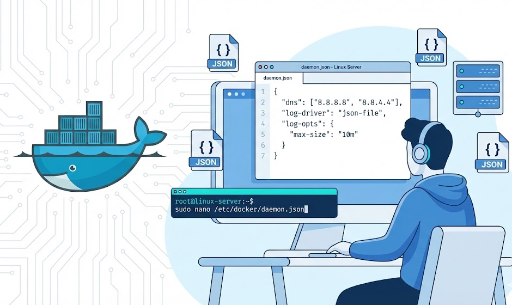
Docker Daemon Global Configuration to Unify Team Development Environments
Whether you're using Docker locally or on a server, you often find yourself repeatedly copying and pasting the same configurations into docker-compose.yml for every project.
- Consistently setting DNS to
1.1.1.1,8.8.8.8, - Fixing the log driver to
json-file+max-size=10m, - Or configurations for proxies, insecure registries, default network ranges, and more.
These aren't individual container settings but rather “host-wide defaults”, which are much easier to manage if centralized. This is precisely the role of Docker daemon global configuration (daemon.json).
Below, we'll cover:
- Which file to create
- Where to create it
- How to write it
- And in what situations it proves useful for developers and teams.
1. Two Ways to Configure the Docker Daemon {#sec-7390246eab38}
The Docker daemon (dockerd) can be configured primarily in two ways:
- Using a JSON configuration file (
daemon.json) ← Recommended - Passing options via CLI flags when running
dockerd
While you can combine both methods, specifying the same option in both will prevent the daemon from starting at all. For example, if you include a log driver in both the --log-driver flag and daemon.json, Docker will error out and terminate during startup.
For unifying team/server environments, it's generally recommended to:
“Consolidate as much as possible into
daemon.json, and use flags minimally.”
2. daemon.json Location
The file is located at /etc/docker/daemon.json. This is for Linux, of course.
While some might use Docker in non-Linux environments, I primarily work with Linux, so I'm less familiar with other OSes. However, here's a convenient table summarizing the default locations per OS:
| Environment | Default Path | Notes |
|---|---|---|
| Linux (standard installation) | /etc/docker/daemon.json |
Most common case |
| Linux (Docker installed with snap) | /var/snap/docker/current/config/daemon.json |
Ubuntu snap package |
| Windows Server / Docker Engine | C:\ProgramData\Docker\config\daemon.json |
|
| Docker Desktop (Mac / Windows) | ~/.docker/daemon.json |
- This file might not exist by default, so if it's missing, you can create it yourself.
3. Basic Usage Pattern: “Create File → Restart Daemon” {#sec-bffe465cc36f}
On Linux, the typical workflow is as follows:
- Write/Modify
daemon.json
{
  "dns": ["1.1.1.1", "8.8.8.8"],
  "log-driver": "json-file",
  "log-opts": {
    "max-size": "10m",
    "max-file": "3"
  }
}
- Pre-validate the configuration file
sudo dockerd --validate --config-file=/etc/docker/daemon.json
# If 'configuration OK' appears, it's valid :contentReference[oaicite:7]{index=7}
- Restart Docker daemon
sudo systemctl restart docker
From now on, newly launched containers will inherit these global settings as defaults unless specified otherwise.
4. Key Setting: Globally Pinning DNS Servers {#sec-d9c2238a423f}
4.1 Why Global DNS?
If you frequently encounter issues like containers “strangely failing to find external APIs” or “internal domains not resolving,” it's often because they rely on the host's DNS settings/environment.
For instance:
- Your entire team wants to use Cloudflare DNS (
1.1.1.1) - There's an endpoint only accessible via your company's internal DNS server
In such cases, rather than adding dns: to docker-compose.yml for every project, it's far more convenient to unify it at the Docker daemon level.
4.2 Configuration Example (daemon.json)
{
  "dns": ["1.1.1.1", "8.8.8.8"]
}
If you already have a daemon.json, simply add the "dns": [...] entry within the root { ... }.
⚠️ Caution: DNS settings are reflected in
/etc/resolv.confinside the container. They are not applied immediately to already running containers, but only to newly launched ones.
5. Key Setting 2 – Global Logging Driver & Options Configuration {#sec-360ddebc7b6c}
Container logs are typically stored under /var/lib/docker/containers/... via the json-file driver. Changing this globally allows you to:
- Log format
- Log storage location
- Log rotation policy
To apply these uniformly across all containers.
5.1 Default json-file Driver + Rotation
The most common pattern is to “simply use json-file, but configure rotation to prevent disk overflow.”
{
  "log-driver": "json-file",
  "log-opts": {
    "max-size": "10m",
    "max-file": "5"
  }
}
With this setup:
- Each container's log file size will be a maximum of
10MB. - A maximum of
5files will be retained. - Excess files will be automatically deleted.
5.2 Centralized Log Collection Drivers (fluentd, journald, etc.)
For platform or infrastructure teams, there's often a need to send all container logs to a centralized logging system.
For example, if using Fluentd:
{
  "log-driver": "fluentd",
  "log-opts": {
    "fluentd-address": "localhost:24224",
    "tag": "{{.Name}}"
  }
}
With this configuration, all container logs will be automatically sent to Fluentd without needing a separate docker run --log-driver=... command.
Personally, I'm also quite fond of the journald driver. In a systemd-based Linux environment, it allows you to consolidate both application logs and Docker container logs into a single journald instance, unifying viewing, filtering, and retention policies using just journalctl.
If you wish to use journald as your global log driver, you can configure it like this, for example:
{
  "log-driver": "journald",
  "log-opts": {
    "tag": "{{.Name}}"
  }
}
Since tag is used as the container name here:
- You can quickly review real-time logs using
journalctl -f | grep {container_name}. - You can also combine it with options like
--since "10m ago"to view logs only after a specific time. - Or, using the
-toption (based on tag/identifier) likejournalctl -f -t {container_name}, you can specifically pinpoint logs for a particular container.
While it's also possible to view logs by unit, like journalctl -u docker.service, filtering by container name is more intuitive and requires less typing, making it much more frequently used in practice.
5.3 Relationship with Compose / docker run
- Global
log-driver+log-optsact as “defaults” - If
logging:(Compose) or--log-driver,--log-opt(CLI) are specified for individual containers, only that container will override the global settings.
Strategically, we recommend a configuration where:
- Common values are in
daemon.json. - Only specific services are overridden individually.
6. Key Setting 3 – Global Network Configurations like Proxy, Insecure Registry {#sec-0d687ac65460}
There are other frequently used options in global settings.
6.1 Proxy Settings
If you can only access external networks via a corporate proxy, instead of setting environment variables every time, you can configure the proxy at the daemon level.
{
  "proxies": {
    "http-proxy": "http://proxy.example.com:3128",
    "https-proxy": "http://proxy.example.com:3128",
    "no-proxy": "localhost,127.0.0.1,.corp.example.com"
  }
}
This way, the Docker daemon will follow these proxy settings when pulling images or using the network during builds.
6.2 Insecure Registry
If you absolutely need to use a registry without TLS (e.g., for internal development):
{
  "insecure-registries": ["my-registry.local:5000"]
}
This can be a security risk, so be careful to use it only in internal testing environments.
7. Key Setting 4 – Default Network Range, Storage Driver, and More {#sec-3598d5fb02d3}
Some more infrastructure-oriented options:
7.1 Customizing the Default Bridge Network Range
When you want to avoid IP conflicts with VPNs or internal company networks:
{
  "default-address-pools": [
    {
      "base": "10.20.0.0/16",
      "size": 24
    }
  ]
}
This ensures Docker uses the 10.20.x.0/24 range when creating new bridge networks.
7.2 Forcing a Storage Driver
The default storage driver can vary depending on the Linux distribution. If your team has decided to use only overlay2:
{
  "storage-driver": "overlay2"
}
The actual supported storage drivers vary by OS/kernel, so always consult the
dockerddocumentation and your distribution's guide.
8. If You're Experiencing This 'Deja Vu', It's Time to Adopt Global Settings {#sec-807a100451aa}
You don't need to be an infrastructure expert. If you've recently experienced any of the following, it's high time you started configuring daemon.json.
- You're digging through
docker-compose.ymland copy-pasting log settings every time you start a new project: If you're constantly fetchingmax-sizeandmax-filesettings from old code and pasting them in again, you're already wasting valuable time. Set it globally once, and all your containers will automatically start in 'diet' mode. - Containers that worked perfectly in the office suddenly lose internet connection in a cafe or VPN environment: This is a classic "but it worked on my machine!" scenario. If you want your containers to communicate consistently with the outside world in any network environment, without being swayed by the host's DNS settings, then global DNS pinning is the answer.
- You're losing your mind trying to manually adjust settings on countless server nodes: Are you debugging "ghost bugs" caused by subtly different Docker configurations on each server? Deploying a single
daemon.jsonfile can make all your servers behave like a disciplined army, following the exact same rules.
The optimal moment to adopt these settings is when you're tired of repetitive configurations or fed up with debugging issues caused by environmental changes.
Summary
- Docker's global defaults are managed in
daemon.json. - The location is typically
/etc/docker/daemon.json. - Examples of common global settings:
- DNS:
"dns": ["1.1.1.1", "8.8.8.8"] - Log driver:
"log-driver": "json-file","log-opts": {...} - Proxy, insecure registry, default network range, storage driver…
- DNS:
- Global settings are useful for repetitive configurations and when deploying many nodes across diverse environments.
If you're constantly using the same options in docker-compose.yml or docker run, it might be time to elevate them to daemon.json.