If you manage your Python development environment with conda, it is worth reading the article below first.
-
Recommended reading:
-
Getting Started with Anaconda, Miniconda, and the World of Conda
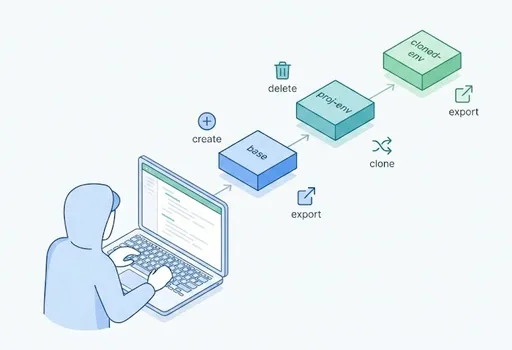
This article briefly reviews those basics and focuses on how to create, delete, clone, and migrate conda environments in practice.
Anaconda vs. Miniconda in a Nutshell
In short, the difference looks like this:
- Anaconda: An all-in-one distribution that installs many commonly used data science and machine learning packages at once.
- Miniconda: A minimal distribution that provides only conda’s environment and package management features, leaving you to install the packages you actually need.
I personally prefer to start light and add packages only when necessary, so I generally recommend installing Miniconda and building environments on top of it.
Its advantages include:
- Lower disk usage
- Less update overhead
- Cleaner environments, since you install only what each project actually needs
A Quick Overview of conda Environments
A conda environment is, simply put, an isolated set of Python and packages for a specific project.
env A: Python 3.10 + Django 4 + specific library versionsenv B: Python 3.11 + FastAPI + a completely different set of libraries
The point is to isolate different versions so they do not interfere with one another.
Here are the basic commands you will use most often when working with environments:
# Show a list of currently installed conda environments
conda env list

# Or
conda info --envs
Creating a conda Environment
3.1 Creating the most basic environment
conda create -n myenv python=3.12
-n myenv: sets the environment name tomyenvpython=3.12: specifies Python 3.12
After creating the environment:
conda activate myenv   # Activate the environment
conda deactivate       # Deactivate the environment
3.2 Installing commonly used packages at creation time
conda create -n myenv python=3.12 numpy pandas matplotlib
This creates a new environment and installs those packages from Miniconda’s default channels.
After that, you can continue adding packages as needed:
conda activate myenv
conda install scikit-learn

# Or
pip install requests
Deleting a conda Environment
It is a good idea to remove environments you no longer use. (conda environments can take up a fair amount of disk space.)
# Delete the myenv environment
conda env remove -n myenv
To confirm that it was removed:
conda env list
If myenv no longer appears in the list, the deletion was successful.
Cloning a conda Environment
Cloning is useful when you want to create another environment with nearly the same setup but a different name.
# Create a cloned environment named new-env based on existing-env
conda create -n new-env --clone existing-env
This is commonly used when:
- you want to preserve the existing environment as-is
- while experimenting in a separate copy with the same package versions
After cloning:
conda activate new-env
Then verify that everything works as expected.
Migrating a conda Environment (export / import)
If you want to move an environment to another PC or server, the most common method is to export the environment to a file and then create a new environment from that file.
6.1 Exporting an environment — creating a YAML file
# Export the myenv environment to an env.yml file
conda env export -n myenv > env.yml
This env.yml file records:
- the environment name
- the channels in use
- the installed packages and their versions
6.2 Exporting only a minimal history-based list
If you want to record only the packages you explicitly installed, rather than the full list including dependencies, use:
conda env export -n myenv --from-history > env-min.yml
With this approach, when you recreate the environment elsewhere, conda will resolve the necessary dependencies automatically.
6.3 Creating an environment somewhere else
To create the environment on another PC, server, or even another location on the same machine:
conda env create -f env.yml
This creates an environment using the name and package versions defined in env.yml.
- If
env.ymlcontainsname: myenv, the environment will be created with that name. - If you want a different name, edit the
name:field inenv.ymlbefore running the command.
For example, if you change name: myenv to name: myenv-dev, then run:
conda env create -f env.yml
conda activate myenv-dev
You will get the same environment configuration under a different name.
Common conda Workflow Patterns
When building environments with Miniconda, the following patterns are especially useful.
- Use one environment per project
- Name environments after projects, such as
proj-a-envorproj-b-env. - This makes version management easier and reduces conflicts.
- Start with a minimal environment and expand only when needed
- Install only
pythonand a few basic packages at first. - Add more later with
conda installorpip installas development progresses. This fits Miniconda’s minimal philosophy very well.
- Export important environments regularly
- At release time or before deployment:
bash
   conda env export -n proj-a-env --from-history > proj-a-env.yml
- If you commit this file to your repository, your team members can easily reproduce the same environment.
- Clone before major changes
- Before large package upgrades or Python version changes:
bash
   conda create -n proj-a-backup --clone proj-a-env
- If something goes wrong, you can quickly return to the backup environment.
Conclusion: Start Light and Expand as Needed
In the end, the choice is fairly simple.
- Anaconda is for starting with a broad set of potentially useful packages already installed.
- Miniconda is for starting small and installing only what you actually need.
Today, different projects often require different Python versions and package combinations. In that kind of situation, Miniconda plus well-managed conda environments gives you far more flexibility.
At a minimum, it helps to know how to:
- create environments (
conda create) - activate them (
conda activate) - delete them (
conda env remove) - clone them (
conda create --clone) - move them elsewhere (
conda env export/conda env create)
Once you are comfortable with those basics, you will spend much less time worrying about questions like, “What do I need to uninstall and reinstall this time?” whenever you start a new project.
When you begin your next project:
- Create a new environment with Miniconda
- Install only the packages you actually need
- If you like the setup, export it to
env.ymland reuse it later with small modifications
Once this pattern becomes familiar, managing conda environments stops feeling like a chore and becomes a reliable habit that keeps your projects clean and organized.