# Dropzone.js Mastery Guide
> **Goal**
> - Understand what Dropzone.js is and why it’s useful
> - Learn installation, basic usage, and customization step by step
> - Get practical code snippets and real‑world tips
---
## 1. What is Dropzone.js? {#sec-b4c20b52b1e1}
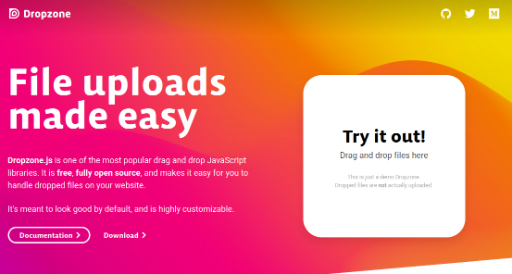
Dropzone.js is an open‑source [[JavaScript]] library that makes **HTML5 file uploads** effortless.
- **Drag & Drop**: Simply drag files with the mouse to start uploading.
- **Preview**: Image files automatically show thumbnails.
- **Multiple Files**: Upload several files at once.
- **Backend Integration**: Send files via Ajax and handle responses.
> **Why use Dropzone.js?**
> - **User Experience**: Intuitive UI for smooth uploads.
> - **Developer Convenience**: No need to write complex upload logic from scratch.
> - **Extensibility**: Options and events cover almost every requirement.
---
## 2. Installation {#sec-41629966022a}
### 2.1 Using a CDN {#sec-49cd76e4c784}
The simplest way is to load it from a CDN. Add the following to your `index.html`.
```html
```
> **Tip**: Check the latest version on [unpkg](https://unpkg.com/dropzone/).
### 2.2 With NPM / Yarn {#sec-869cd2697109}
If you’re using npm, install it with:
```bash
npm install dropzone
# or
yarn add dropzone
```
After installation, import or require it.
```js
import Dropzone from 'dropzone';
```
> **Note**: Always set `Dropzone.autoDiscover = false;` to prevent automatic initialization.
---
## 3. Basic Usage {#sec-7e8518821e91}
### 3.1 HTML {#sec-f6dd22ef554f}
```html
```
- `action` specifies the server endpoint for file uploads.
- `class="dropzone"` lets Dropzone automatically recognize the form.
### 3.2 JavaScript {#sec-3d15b097caac}
```js
Dropzone.autoDiscover = false; // Prevent auto‑init
const myDropzone = new Dropzone('#myDropzone', {
paramName: 'file', // Parameter name expected by the server
maxFilesize: 5, // Max file size in MB
acceptedFiles: 'image/*', // Allowed file types
dictDefaultMessage: 'Drag files here or click to upload',
init: function () {
this.on('success', function (file, response) {
console.log('Upload succeeded:', response);
});
this.on('error', function (file, errorMessage) {
console.error('Upload failed:', errorMessage);
});
}
});
```
> **Key Options**
> - `url`: Target URL for uploads (can replace `action`).
> - `maxFiles`: Maximum number of files per batch.
> - `uploadMultiple`: Enable or disable multi‑file uploads.
> - `autoProcessQueue`: Whether to send files automatically (use `processQueue()` for manual).
---
## 4. Customization {#sec-61166bbab233}
### 4.1 Changing the Preview Style {#sec-e50dd06ef574}
Dropzone shows thumbnails by default. Use CSS to tweak the look.
```css
/* Resize thumbnails */
.dropzone .dz-image img {
width: 100px;
height: 100px;
object-fit: cover;
}
/* File name font */
.dropzone .dz-details .dz-filename {
font-weight: bold;
}
```
### 4.2 Server Communication {#sec-e02682b18f8b}
The server should accept the file and return JSON. Example with Node.js + Express:
```js
const express = require('express');
const multer = require('multer');
const upload = multer({ dest: 'uploads/' });
const app = express();
app.post('/upload', upload.single('file'), (req, res) => {
// File info is in req.file
res.json({ success: true, filename: req.file.filename });
});
app.listen(3000, () => console.log('Server running on http://localhost:3000'));
```
> **Tip**: The string `'file'` must match the `paramName` set in Dropzone.
### 4.3 File Deletion {#sec-03df30c5c2ba}
Dropzone can send a `DELETE` request when a file is removed.
```js
const myDropzone = new Dropzone('#myDropzone', {
// ...
dictRemoveFile: 'Delete',
init: function () {
this.on('removedfile', function (file) {
fetch('/delete', {
method: 'DELETE',
body: JSON.stringify({ filename: file.upload.filename }),
headers: { 'Content-Type': 'application/json' }
});
});
}
});
```
---
## 5. Practical Tips {#sec-f5e6e006e0f7}
| Scenario | Solution |
|----------|----------|
| **Limit files in multi‑upload** | Use `maxFiles: 10` |
| **Show upload progress** | Listen to the `progress` event |
| **Cancel an upload** | Call `cancelUpload()` |
| **Retry on failure** | Implement retry logic in the `error` event or use the `retry` option |
| **Security** | Include a CSRF token in the `headers` option |
---
## 6. Wrap‑Up {#sec-9c0cd68f26e6}
Dropzone.js delivers a powerful file‑upload UI with minimal setup:
- **Initial setup**: CDN or npm → `autoDiscover = false` → HTML form + JS instance.
- **Customization**: Use options, events, and CSS to shape the UI.
- **Server integration**: Pair with middleware like `multer` to store files and respond.
Next steps: dive deeper into multi‑file uploads and advanced preview styling to elevate the user experience.
> **Further Resources**
> - [Official Documentation](https://www.dropzonejs.com/)
> - [Example Code Repository](https://github.com/dropzone/dropzone/)
Happy coding! 🚀